
Introduction
The draw.io MCP (Model Context Protocol) server has been released, so I tried using it to automatically generate AWS architecture diagrams from SAM templates.
https://x.com/drawio/status/2020918870375370825
What is MCP?
MCP (Model Context Protocol) is a standard protocol proposed by Anthropic for connecting AI assistants with external tools. GitHub Copilot also supports MCP, allowing integration with various external services and tools through MCP servers.
The drawio MCP server used in this article enables AI agents to directly create and edit Draw.io diagrams.
Environment Setup
1. Installing the VS Code Extension
First, install the Draw.io Integration extension in VS Code.
- Open the Extensions tab in VS Code (Ctrl/Cmd + Shift + X)
- Search for "Draw.io Integration"
- Install "hediet.vscode-drawio"
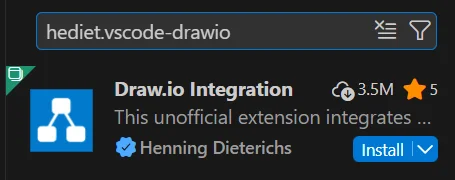
Or install directly from this link: https://marketplace.visualstudio.com/items?itemName=hediet.vscode-drawio
This extension allows you to directly edit and preview .drawio files within VS Code.
2. Setting Up the drawio MCP Server
The drawio MCP server can be used in two ways:
| Item | Method A: npx Execution (Recommended) | Method B: Global Installation |
|---|---|---|
| Preparation | Not required | npm install -g @drawio/mcp |
| Startup Speed | Slow on first run (download), uses cache thereafter | Fast |
| Version Management | Always automatically fetches the latest version | Manual npm update -g required |
| Environment Impact | Doesn't pollute global environment | Adds package globally |
| Suitable For | First-time users, those who want to keep environment clean | Daily users, those who prioritize startup speed |
Method A: Execute with npx (Recommended)
Add the following to VS Code settings (settings.json):
{
  "github.copilot.chat.mcp.servers": {
    "drawio": {
      "command": "npx",
      "args": ["-y", "@drawio/mcp"]
    }
  }
}
The -y flag automatically downloads and executes the package without confirmation.
Method B: Global Installation
npm install -g @drawio/mcp
Add the following to VS Code settings (settings.json):
{
  "github.copilot.chat.mcp.servers": {
    "drawio": {
      "command": "drawio-mcp"
    }
  }
}
3. Verifying the Setup
Open Copilot Chat and verify that the drawio server tools are available in the [Configure Tools...] section of the chat window.

Preparing the SAM Template
For this example, we're assuming a SAM template for a serverless application with the following components:
- API Gateway
- Lambda functions (multiple)
- DynamoDB
- S3 bucket
- CloudWatch Logs
- IAM roles
Auto-Generating Architecture Diagrams
Crafting the Prompt
Give the following instruction to GitHub Copilot Chat:
Analyze this SAM template and create an AWS architecture diagram in draw.io.

Requirements:
1. Use official AWS icons
2. Clearly express relationships between resources with arrows
3. If there are VPCs or security groups, represent their grouping
4. Create a layout that makes data flow direction easy to understand
5. Label in Japanese (or English)
6. Output a .drawio file
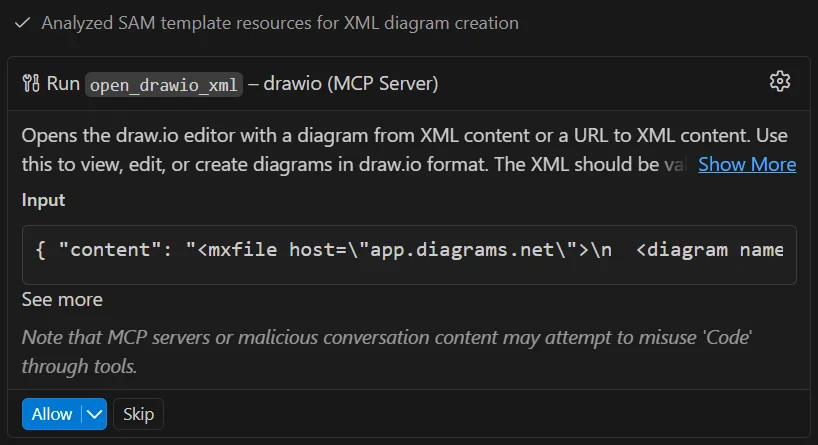
The MCP server tools are being used:
Generated Results
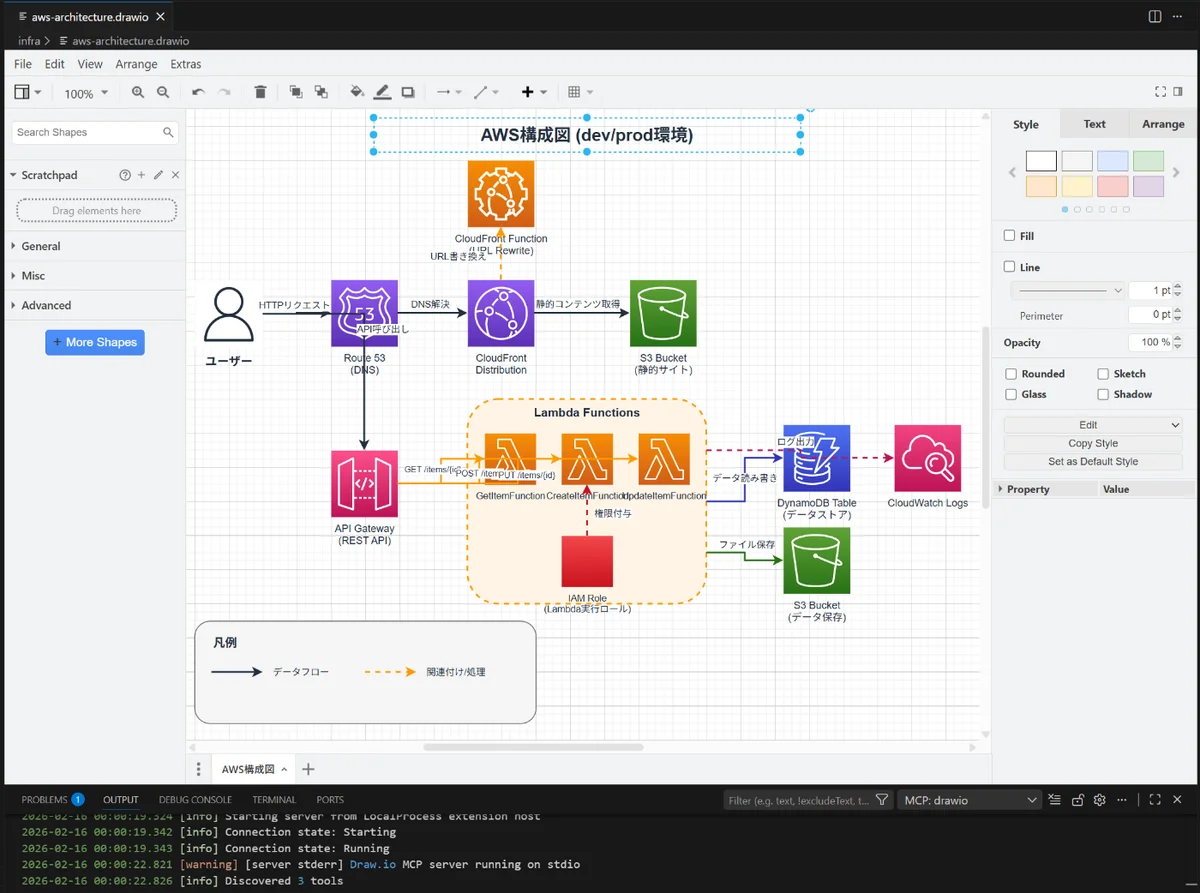
Within seconds, an AWS architecture diagram is generated with the following elements:
- All AWS resources represented with appropriate icons
- Connection relationships between Lambda functions and API Gateway
- DynamoDB access patterns
- S3 bucket purposes
- Log output to CloudWatch Logs
- IAM role and resource associations
The generated .drawio file can be opened and verified directly within VS Code. The Draw.io Integration extension visually renders the diagram in the editor, allowing manual fine-tuning as needed.
Except for some overlapping text and arrows, the AWS architecture diagram is almost exactly as expected.
Practical Tips
1. Immediate Verification and Editing in VS Code
- Real-time Preview: Simply click the generated
.drawiofile to display the diagram within VS Code - Manual Adjustments: Make fine position adjustments and color changes manually based on the GitHub Copilot-generated diagram
- Export: Export directly to PNG, SVG, PDF, and other formats from the extension
- Side-by-Side Display: Display SAM templates and architecture diagrams side by side to verify consistency while working
2. Generate Complex Templates in Parts
First, create an overall architecture diagram.
Next, create a separate detailed diagram of the API layer.
3. Version Control Integration
Working within VS Code enables the following efficient workflow:
- Edit SAM template
- Generate architecture diagram with GitHub Copilot
- Verify and fine-tune the diagram in the same VS Code
- Commit template and diagram together using Git integration
4. Gradual Refinement
1st iteration: Generate basic architecture
2nd iteration: Add data flow
3rd iteration: Visualize security groups and IAM policies
4th iteration: Add monitoring and alert configurations
Benefits and Use Cases
Benefits
✅ Significant Time Reduction: Reduce diagram creation time by over 90%
✅ Perfect Alignment with IaC: No divergence since generated directly from templates
✅ Continuous Updates: Diagrams can be updated immediately when templates change
✅ Seamless Development Experience: Complete development to diagram generation and verification within VS Code
✅ Flexible Manual Adjustments: Fine-tune with Draw.io extension based on AI generation
Use Cases
- 🚀 Creating design documents for new projects
- 📝 Organizing documentation for existing systems
- 🔄 Automatic documentation generation in CI/CD pipelines
- 👥 Explaining architecture to team members
- 📊 Creating proposal materials for clients
Conclusion
By combining the drawio MCP server with VS Code's Draw.io Integration extension, we can now automatically generate AWS architecture diagrams from SAM templates. This enables:
- Efficient Documentation Creation: Dramatically faster compared to manual creation
- Improved Quality: Guarantees perfect alignment with IaC
- Enhanced Maintainability: Immediately follows template changes
- Improved Development Experience: Complete development to documentation creation within VS Code
The fact that everything can be completed within VS Code is a major advantage:
- Write code
- Generate diagrams with GitHub Copilot
- Verify and edit diagrams in the same editor
- Manage together with Git
If you're facing challenges with AWS environment documentation, especially if you use VS Code as your main editor, please give this a try.